
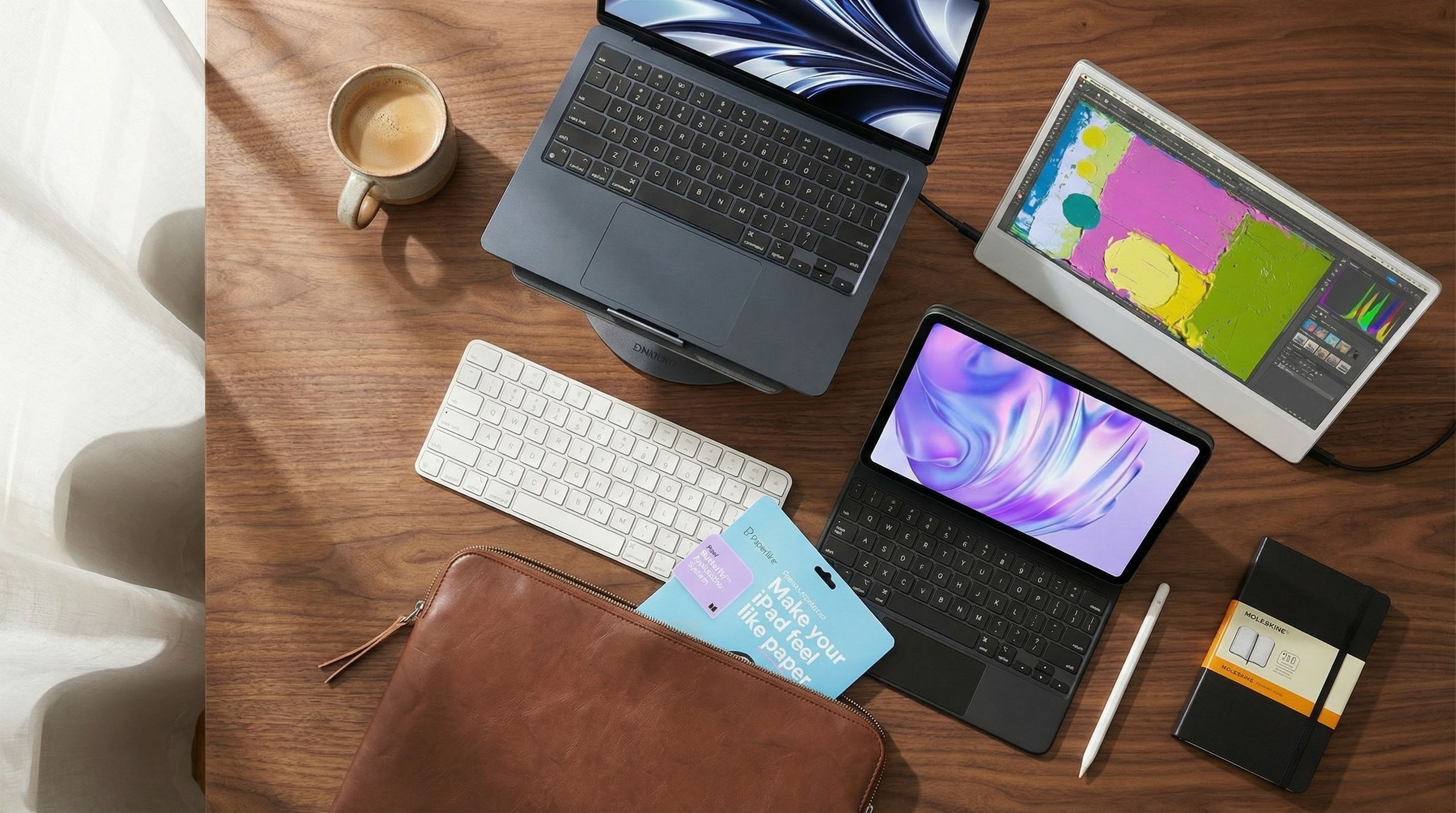
Apple’s tablet no longer lives on the margins of creative workflows. With recent hardware and software jumps, the iPad now plugs into pro studios, edit bays, and classrooms-often as a laptop-class device with touch and pen advantages. For institutions, that shift turns a once‑personal device into shared production infrastructure that has to align with IT policy, accessibility rules, and procurement standards. The accessory ecosystem has shifted accordingly: what matters today is I/O, ergonomics, and workflow speed, not just protection.
From tablet companion to creative workstation
The newest iPad generation brings faster on‑device processing, broader external display support, and pro apps that assume keyboard, trackpad, and stylus input. That raises the bar for accessories: pens must translate rotation and pressure with nuance; stands must hold steady while sketching; portable monitors must be color‑reliable; and keyboards have to behave like full laptop decks, while remaining manageable under institutional device‑management policies.
Why these five accessories punch above their weight
In testing and hands‑on use with creative teams, classrooms, and small studios, the following gear consistently shortens common creative loops-drawing to export, rough cut to color pass, layout to proof-while respecting the iPad’s mobility and the budget constraints of schools and public‑sector buyers.
| Accessory | What it adds | Standout features | iPad compatibility (summary) | Typical price (USD) |
|---|---|---|---|---|
| Apple Pencil Pro | Pen-first control for illustration, design, and note capture | Squeeze gesture for an on‑nib tool palette; “Barrel Roll” brush rotation via gyroscope; low‑latency haptics; magnetic pairing and charging | Latest iPad Pro models supporting Pencil Pro features | $94.99 |
| Magic Keyboard Case (latest) | Laptop‑style typing and precision trackpad control | Thinner, lighter chassis; aluminum palm rest; larger glass trackpad; January 2026 firmware improves palm rejection and trackpad sensitivity | Recent iPad Pro sizes with the updated Smart Connector layout | $269.99 |
| Paperlike 3 Screen Protector | Matte texture for pen control without color drab | Nanodots surface keeps display vibrancy; redesigned installation kit reduces dust bubbles; launched September 2025 | Multiple iPad sizes; check model‑specific kit | $49.99 |
| Lululook 360 Rotating Magnetic Stand (2025 refresh) | Stable sketching posture and quick portrait/landscape swaps | 360° rotation without moving the base; stiffer hinges reduce bounce under pressure; tuned for latest iPad Pro magnets | Magnet‑back iPad Pro models | $65.99 |
| Sotsu 12.5‑inch Ultra‑Slim Portable Monitor | Two‑screen editing on the go | iPad‑thin profile; single‑cable USB‑C connection; popular with mobile video editors using LumaFusion and DaVinci Resolve | USB‑C iPads with external display output | $199 |
| Comfyable Slim Tablet Sleeve | Low‑cost travel protection | Water‑resistant vegan leather; microfiber lining; internal Apple Pencil slot; fits Magic Keyboard | Multiple iPad sizes; confirm internal dimensions | $28.99 |
The standards that now govern your iPad accessory choices
As iPads move into regulated environments-from public universities to government media units-accessory decisions increasingly sit inside broader digital‑governance frameworks. Much of the day‑to‑day policy work flows from platform rules such as Apple’s mobile device management and security posture, and from general‑purpose data protection law in jurisdictions that follow instruments like the EU General Data Protection Regulation.
- USB‑C and DisplayPort Alt Mode: Modern iPads output video over USB‑C; ensure your cable is video‑capable and your portable monitor accepts DP Alt Mode without adapters. Standardizing here simplifies support and mitigates the risk of unapproved dongles in locked‑down environments.
- USB4/Thunderbolt‑class bandwidth on iPad Pro: Higher bandwidth helps with 10‑bit color pipelines and high‑refresh displays; hubs should be rated for the same to avoid bottlenecks and to keep high‑resolution government or institutional media workflows responsive.
- Color management and HDR: iPad Pro targets wide color (P3). Portable monitors vary; prioritize panels with factory profiles and sRGB/P3 modes to minimize mismatch when grading or proofing, especially where visual material feeds into public‑facing campaigns or evidentiary records.
- Bluetooth Low Energy for input devices: Keyboards, trackpads, and third‑party styli rely on BLE; enterprises should validate accessory firmware update paths and pairing behavior, as unmanaged radios can weaken endpoint security baselines.
- USB Restricted Mode when locked: iPadOS limits data over USB when the device is locked; creative shops and schools should train teams on unlocking before connecting hubs and monitors so that security features do not get disabled or worked around under deadline pressure.
Pencil input that feels like a studio tool
For pen‑driven apps, the Apple Pencil Pro is the only stylus that lets you rotate shaped brushes in real time with “Barrel Roll,” while the squeeze gesture places a tool palette at the nib. Hover and haptic feedback make brush previews and selection changes feel immediate. Third‑party pens can be cost‑effective, but artists working in Procreate, Fresco, and Affinity tend to benefit from the Pencil Pro’s motion and haptics stack when speed matters, particularly in newsroom graphics desks or government communication teams where rapid iteration is the norm.
Dual‑display iPad workflows without the guesswork
External display support has matured to the point that editors routinely keep timelines or bins on the iPad and full‑screen previews on a portable panel. The Sotsu 12.5‑inch monitor emerged as a mobile favorite because it matches the iPad’s thinness and runs off a single USB‑C cable, making it easy to add to standardized field kits for agencies, universities, and production houses.
- Cable sanity check: Use a certified USB‑C cable rated for video; many charging‑only cables won’t pass DisplayPort signals.
- Power budgets: Some bus‑powered monitors under‑draw from the iPad; if brightness flickers, add a powered hub or inject power via a second USB‑C port on the display.
- App behavior: Pro apps handle second screens differently-some mirror, some extend with independent UI. Verify per‑app settings after first connect so staff can rely on predictable layouts when teaching, presenting, or editing on deadline.
- Content protection: If a clip won’t play on the external monitor, HDCP may be required; swap to a monitor that supports it or disable protected playback in the app if available, in line with your organization’s content‑handling policies.
Desk ergonomics for long sessions
Sketching on glass exposes weak stands quickly. The refreshed Lululook 360 stand addresses wobble with stiffer hinges and keeps rotations smooth, so illustrators can change orientation without shifting posture. For institutions under occupational‑health rules, the ability to set consistent viewing angles and heights is at least as important as style. Pairing a stand with a paper‑texture protector like Paperlike 3 gives controlled friction for line accuracy while keeping color pop-useful when inking or shading at speed.
Typing and pointing that behaves like a laptop
The latest Magic Keyboard closes the gap with notebooks: thinner and lighter, but with a more robust aluminum palm rest and a larger glass trackpad that feels Mac‑grade. A January 2026 firmware update tightened palm rejection and sensitivity, eliminating stray cursor jumps and mis‑clicks some users saw in earlier software. For IT teams, it’s worth treating keyboard firmware as part of the regular patch cadence so that accessibility and input reliability keep pace with operating‑system updates.
Color and texture: getting matte without the mud
Matte protectors can sap contrast or add sparkle. Paperlike 3’s surface aims to preserve vibrancy while delivering the bite artists want for micro‑control. The updated install kit also solves a long‑standing pain point by minimizing dust bubbles, an upgrade that pays off in both look and feel. For classrooms and public labs, fewer failed installs also mean less waste and lower replacement costs over the lifetime of a fleet.
Procurement and compliance checklist for studios and schools
Once iPads become shared creative infrastructure, accessory choices move from personal preference to policy. A short, explicit checklist helps procurement teams and department heads translate creative needs into spec sheets.
- Standardize on two cable types: a short, high‑quality USB‑C video cable for field kits and a longer, labeled one for desks; avoid mixing charge‑only leads in accessory bins.
- Document color workflows: Set a default color space per project and calibrate external monitors to match the iPad’s target gamut where possible, especially when work feeds into broadcast, print, or evidentiary pipelines.
- Validate firmware paths: Keep keyboard and monitor firmware updated; record version baselines for classrooms and shared labs so support teams can troubleshoot quickly.
- Pairing policy: For managed iPads, restrict Bluetooth pairing to approved device classes; supervise devices so lost pens and keyboards can be cleared and re‑paired quickly without compromising security.
- Travel protection: Sleeves like the Comfyable keep Magic Keyboard‑equipped iPads snug; require sleeves for off‑site shoots or field visits to cut damage claims and downtime.
Quick start: the five‑minute setup that saves hours later
For solo creators and institutional rollouts alike, a few set‑and‑forget steps dramatically reduce friction once the work begins.
- Connect the portable monitor first, then launch your editing or drawing app so it detects the second screen cleanly.
- Map Pencil Pro squeeze to your most‑used palette or brush editor-and save that preset across apps where available.
- On Magic Keyboard, tweak trackpad tap‑to‑click and cursor speed in Settings to match your laptop muscle memory.
- Install the screen protector in a steamy bathroom or with the included dust guides to avoid micro‑particulates.
- Snapshot your layout: In apps that support it, save canvas, tool, and window positions as a default workspace for quick recovery after crashes, OS updates, or device swaps.
Market and policy tailwinds to watch
The same forces that are reshaping laptops and phones now apply to tablets-and by extension, to the accessories that make them productive.
- USB‑C consolidation: With USB‑C now standard across new iPads and other devices, cross‑compatibility of monitors and hubs is improving and e‑waste falls as single‑purpose cables disappear. Public institutions specifying USB‑C across fleets can negotiate better prices and simplify recycling plans.
- Right‑to‑repair momentum: Accessory makers that provide replaceable cables, modular stands, or adhesive‑free install kits reduce landfill and improve fleet longevity for institutions, aligning with emerging repairability and sustainability targets in many jurisdictions.
- Data‑path hygiene: As iPads shoulder more studio work, organizations are adopting laptop‑style endpoint policies-enforcing screen locks, limiting unknown USB peripherals, and logging accessory inventories so that a “simple stand and keyboard” setup doesn’t open blind spots in security audits.
Put together, these accessories do more than round out a kit. They unlock workflows that were previously tethered to a desk and give institutions a credible alternative to issuing full laptops for every creative role. If your goal is to keep creative momentum high without dragging a notebook everywhere-or to standardize mobile production across a department-the iPad, paired with the right pen, keys, stand, screen, and sleeve, has finally grown into the role.
More on performance specs and sizes: iPad Pro.
Related reading
