
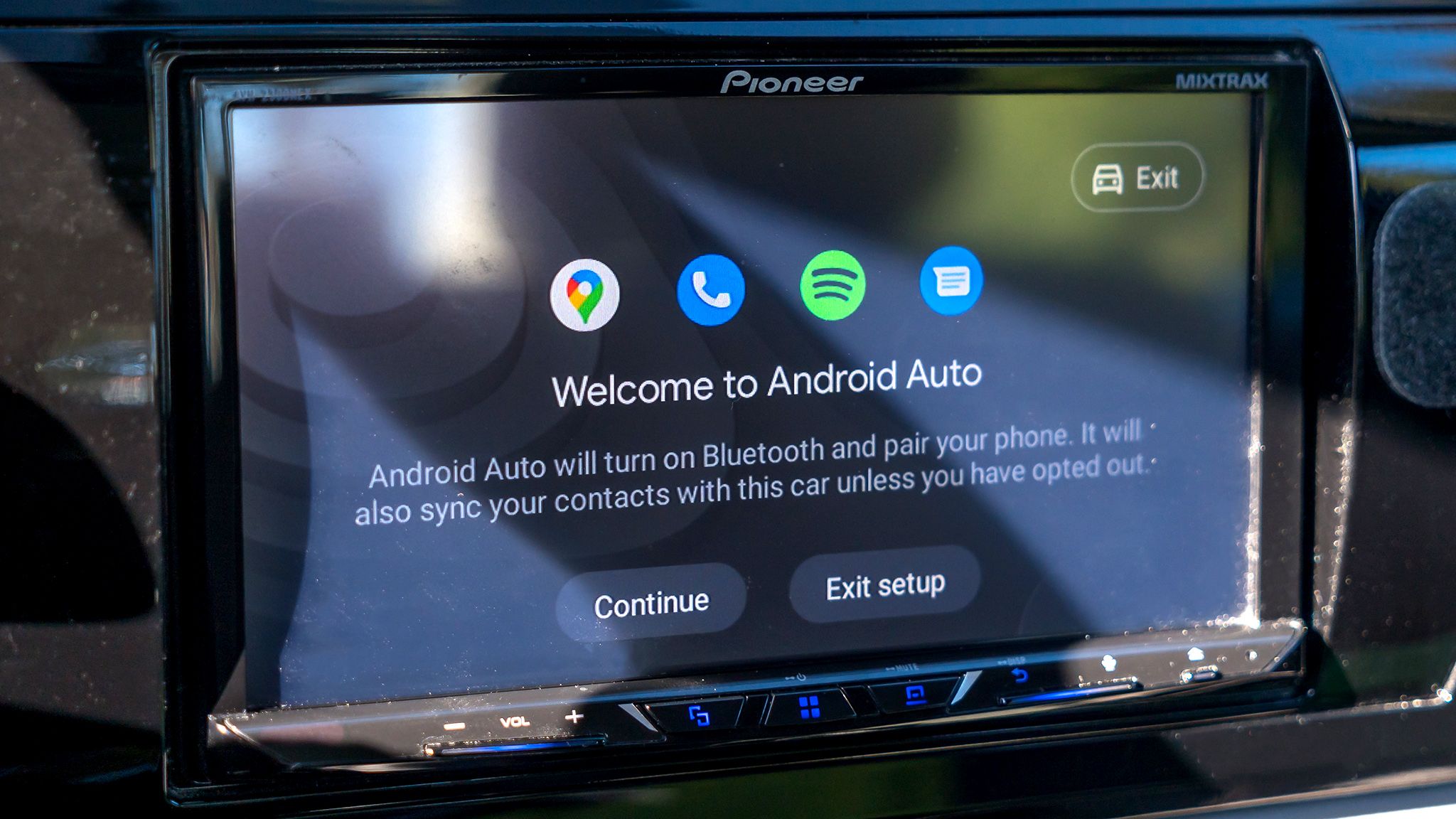
The modern vehicle cockpit has evolved from a simple dashboard into a complex projection of our digital lives. Android Auto serves as the primary bridge for millions of users, turning a car’s head unit into an extension of the smartphone’s ecosystem. However, the default configuration often prioritizes connectivity over driver focus, leading to a fragmented user experience that can range from jarring audio starts to intrusive notifications.
Optimizing this interface is not merely about preference; it is about managing cognitive load. In an era of increasingly stringent distracted driving regulations, including national rules that draw on the United Nations’ World Forum for Harmonization of Vehicle Regulations, the ability to prune the digital noise within the cabin is a critical safety measure.
Controlling Audio Automation and Initial Connection
One of the most immediate friction points for users is the automatic triggering of media upon connection. For many, the sudden blast of audio-potentially at a high volume from a previous session-is an unwelcome start to a journey. This is particularly problematic in shared vehicles, fleet cars, or professional environments where abrupt audio can also breach basic workplace etiquette.
To mitigate this, users can navigate to the Android Auto settings on their device, locate the Start-up sub-menu, and disable the Start music automatically toggle. This simple step prevents media from resuming the moment the phone connects to the head unit, giving the driver control over when audio begins rather than letting the system decide.
Beyond the audio experience, the system’s startup behavior impacts hardware longevity and power consumption-an increasingly salient issue as regulators push for more energy-efficient in-vehicle electronics. Wireless Android Auto relies on a complex handshake between Bluetooth and Wi-Fi Direct, which significantly increases battery drain compared to a wired connection. While there is no direct “off” switch for the automatic launch, a viable workaround exists: disabling the Start Android Auto while locked option. This ensures the phone connects via Bluetooth for basic telephony but prevents the full projection interface from launching unless manually triggered, preserving battery for shorter trips and limiting unnecessary screen time.
Managing Cognitive Load and Notification Noise
The influx of notifications on a vehicle’s head unit can create a dangerous diversion. While Android Auto is designed to be “safe,” the sheer volume of alerts from messaging and media apps can lead to cognitive tunneling, where the driver focuses more on the screen than the road. That risk sits squarely in the sights of lawmakers and insurers who increasingly treat screen-based distraction in the same bracket as handheld phone use.
Effective notification management therefore requires a multi-layered approach to filter out non-essential data, turning Android Auto into a pared-back driving companion rather than a full smartphone feed:
- Auditory filtering: Disabling the Play message chime removes the audible ping for new messages, allowing the driver to remain focused on road noise, navigation prompts, and critical alerts while still permitting visual indicators for those who want them.
- Visual filtering: For those seeking a completely quiet and minimally distracting cabin, disabling Show message notifications removes the alerts from the screen entirely. This is particularly relevant on long motorway drives or in jurisdictions where enforcement agencies scrutinize in-cabin screen use after incidents.
- App-level pruning: Through the Customize Launcher menu, users can uncheck specific applications. This prevents unwanted apps from appearing in the drawer and stops their associated notifications from interrupting the drive, aligning the interface with a “transport mode” mindset rather than an “all-apps” default.

AI Integration and Interface Efficiency
The integration of Gemini into Android Auto marks a transition from deterministic voice commands to probabilistic, conversational AI. While large language model-based assistants offer superior understanding of complex requests-such as combining navigation, calendar, and messaging in a single query-they are still susceptible to environmental interference. Road noise, wind, and cabin chatter can all push recognition accuracy down at precisely the moment drivers need reliability.
To bypass the inconsistencies of voice AI, users can implement deterministic shortcuts via the Customize Launcher menu. By selecting Add a shortcut to the Launcher, drivers can create one-tap triggers for specific functions that they know they will need regularly:
| Shortcut type | Functionality | Example use case |
|---|---|---|
| Call a contact | Direct dialing of a specific person | One-tap call to a spouse, emergency contact, or dispatch office |
| An Assistant action | Execution of a pre-defined voice command | “Find all gas stations near me” or “Navigate to the nearest hospital” |
These shortcuts can be reordered to the top of the app drawer, ensuring that the most frequent actions require the minimum amount of visual attention from the driver. In regulatory terms, that nudges the interface closer to the “glanceable” threshold that many safety frameworks and corporate fleet policies now expect.

Optimizing the Taskbar for Passenger Interaction
The layout of Android Auto is designed to prioritize the driver, but the introduction of Taskbar widgets expands the utility for everyone in the vehicle. When enabled, these widgets allow for the control of music playback directly from the taskbar, regardless of which app is occupying the primary screen space.
This modification is particularly useful in split-screen or full-screen navigation modes. Without this setting, a passenger would need to switch the primary application to adjust a track, potentially distracting the driver or obscuring navigation information at a critical junction. By activating taskbar widgets, the control of media is decoupled from the main app view, streamlining the cabin’s operational flow and supporting a division of labour in the car: the driver keeps eyes on the road while a front-seat passenger handles non-essential interactions.

Taken together, these adjustments transform Android Auto from a generic mirror of a phone into a tailored automotive tool. For individual drivers, that means a calmer, more predictable in-car experience. For policymakers, insurers, and fleet operators, it points to a practical way software design can support safer roads without waiting for a new hardware generation or a fresh round of legislation.
